

How to Customize PowerApps Templates Without Coding
PowerApps templates are one of the fastest ways to build internal business apps on the Microsoft Power Platform. A common misconception, however, is that customizing PowerApps templates requires advanced formulas or coding skills.
In reality, most PowerApps template customization can be done visually inside PowerApps Studio, without writing code. This makes templates especially valuable for IT teams, operations managers, and business users who want speed without complexity.
This guide explains how to customize PowerApps templates without coding and adapt them to real business workflows in 2026.
What “Without Coding” Means in PowerApps
In the PowerApps ecosystem, “without coding” does not mean zero logic. It means avoiding custom development and complex formulas while relying on built-in configuration tools.
No-code customization in PowerApps typically includes visual UI changes, data source setup, workflow automation using Power Automate, and basic conditional behavior through app settings.
Most ready-made PowerApps templates are designed specifically to support this approach.
What “Without Coding” Means in PowerApps
In the PowerApps ecosystem, “without coding” does not mean zero logic. It means avoiding custom development and complex formulas while relying on built-in configuration tools.
No-code customization in PowerApps typically includes visual UI changes, data source setup, workflow automation using Power Automate, and basic conditional behavior through app settings.
Most ready-made PowerApps templates are designed specifically to support this approach.

Customizing Layout, UI, and Branding
The first and most common customization step is visual branding.
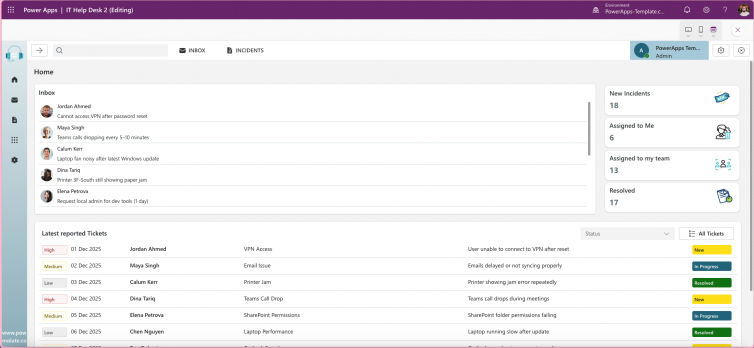
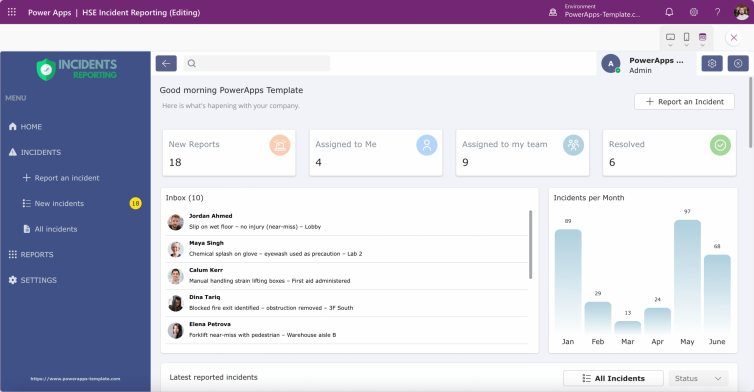
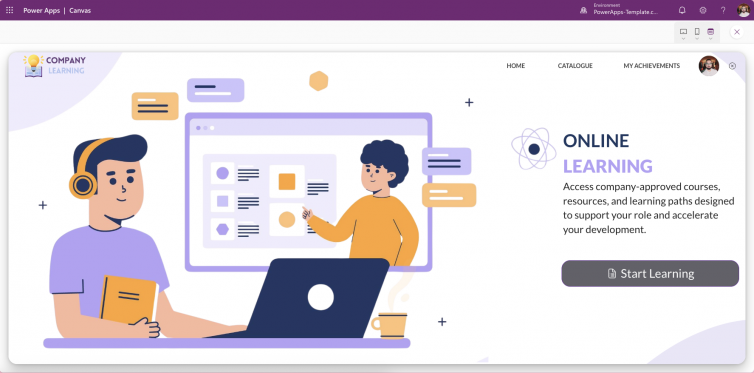
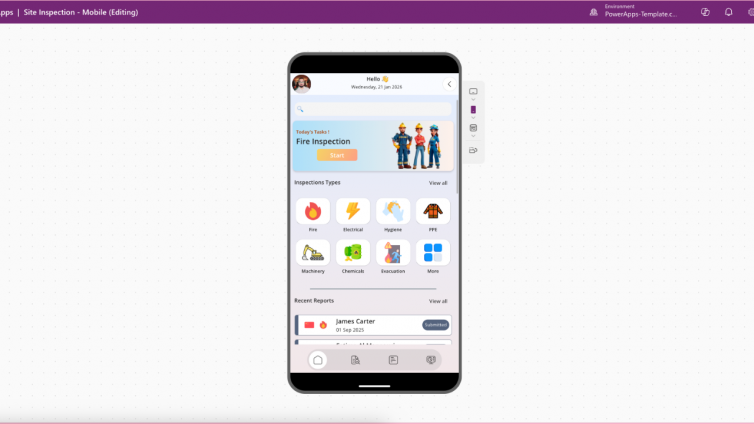
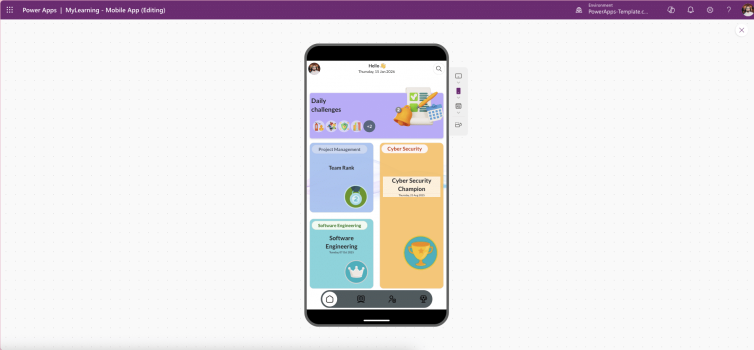
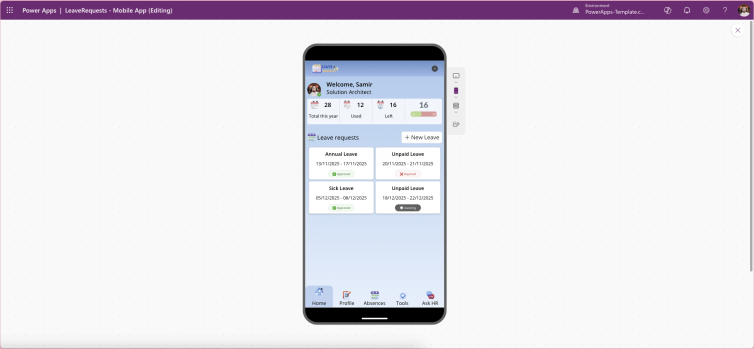
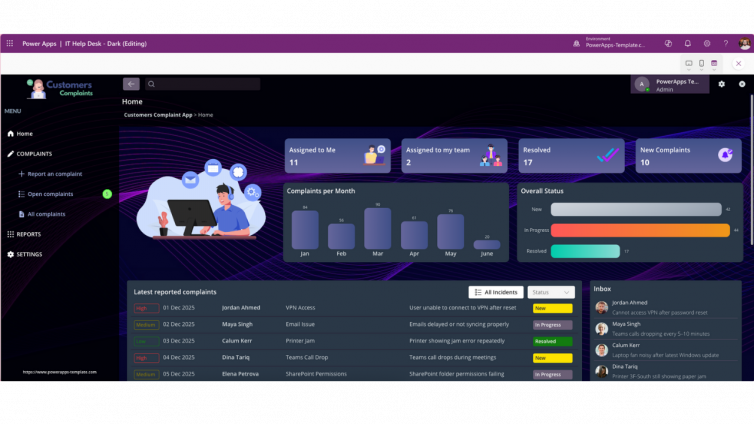
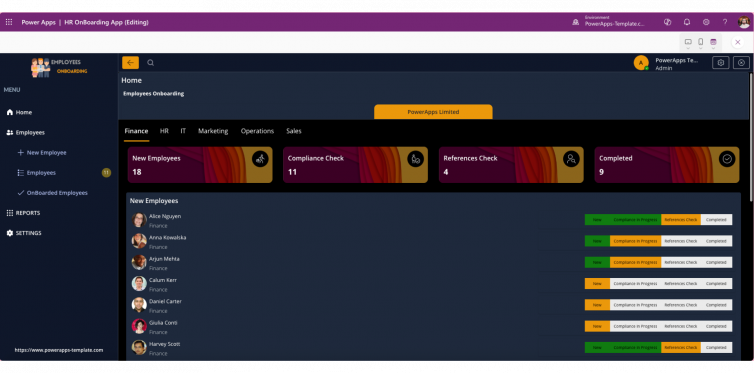
Inside PowerApps Studio, you can adjust colors, fonts, and themes to match company branding. Logos and icons can be replaced in seconds, and screen layouts can be optimized for desktop, tablet, or mobile use.
Field names, labels, and button text can also be renamed to match internal terminology. Because most templates use reusable components, these changes stay consistent across the app.
This step alone significantly improves user adoption without touching any logic.
Adapting Data Sources Without Development
PowerApps templates usually ship with sample data or standard connectors. Customizing the data layer does not require coding.
You can connect templates to SharePoint, Dataverse, Excel, or other supported data sources through the interface. Columns can be renamed, required fields adjusted, and default values configured directly from settings.
Correct data mapping at this stage is critical. A clean data structure ensures better performance, easier reporting, and long-term scalability as the app grows.
Modifying Workflows Using Power Automate
Automation is one of the most powerful parts of the Power Platform, and it does not require coding.
Using Power Automate, you can add email notifications, Microsoft Teams alerts, approval flows, escalation rules, and automated logging. Most PowerApps templates include predefined flows that can be duplicated and adjusted visually.
This allows teams to extend functionality while keeping workflows readable and maintainable.
Managing User Roles and Access Control
Many PowerApps templates support role-based behavior out of the box.
Without coding, you can control which users can view, edit, or manage specific parts of the app. Screens can be shown or hidden based on role, admin features can be restricted, and edit permissions can be limited.
These settings are usually handled through configuration screens or simple conditions rather than custom formulas.
Extending PowerApps Templates Incrementally
One of the biggest mistakes teams make is over-customizing before launch.
A better approach is to deploy the template with minimal changes, collect real user feedback, and extend features gradually. This reduces risk and prevents unnecessary complexity.
PowerApps templates are built to evolve, making them ideal for iterative improvement rather than large upfront customization.
Common Mistakes to Avoid When Customizing PowerApps Templates
Teams often run into issues by changing too many core elements at once or ignoring how data structure impacts performance. Another frequent mistake is modifying automation flows without proper testing.
Customizing before gathering user feedback also leads to features that are rarely used. Incremental changes based on real usage produce better long-term results.
Final Thoughts
PowerApps templates strike a balance between structure and flexibility. They allow organizations to build scalable internal apps quickly while avoiding unnecessary development effort.
With the right approach, teams can customize PowerApps templates without coding, launch faster, and still meet business-specific requirements. For many organizations using the Microsoft Power Platform, templates offer the safest and most efficient path from idea to production.
FAQs
Yes. Most PowerApps templates are designed for no-code customization, allowing users to modify layouts, data sources, workflows, and access rules using visual tools inside PowerApps Studio.
No. Basic familiarity with PowerApps Studio is usually enough. Most changes can be made through settings, connectors, and Power Automate without writing formulas or code.
You can customize UI design, branding, data sources, workflows, user roles, permissions, and notifications. Advanced logic can be added later if needed, but it is not required for most use cases.
Yes. Well-built PowerApps templates follow Power Platform best practices and are suitable for production environments when configured correctly.
Over-customizing too early. Launching with minimal changes and iterating based on real user feedback leads to better performance and easier maintenance.